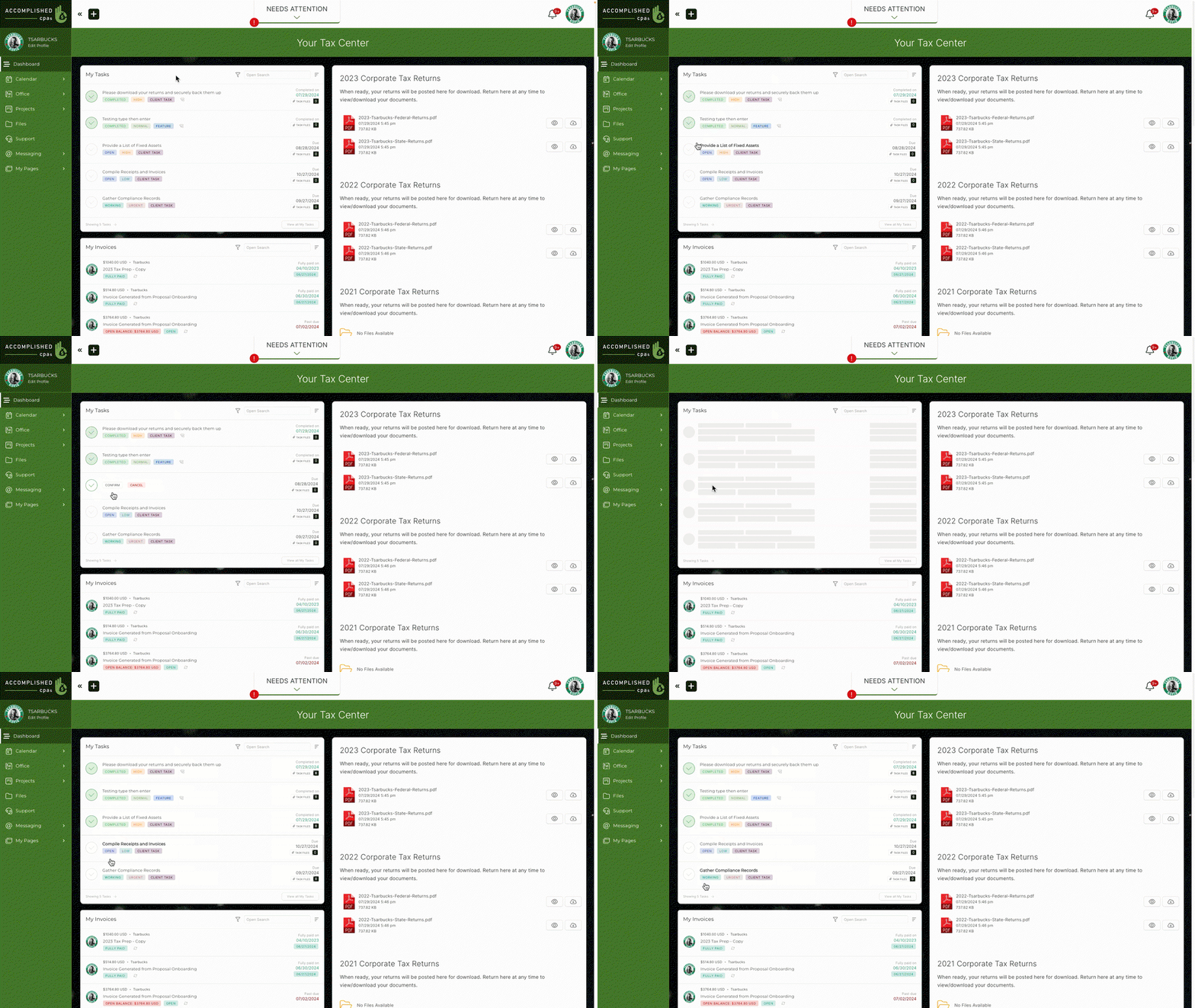
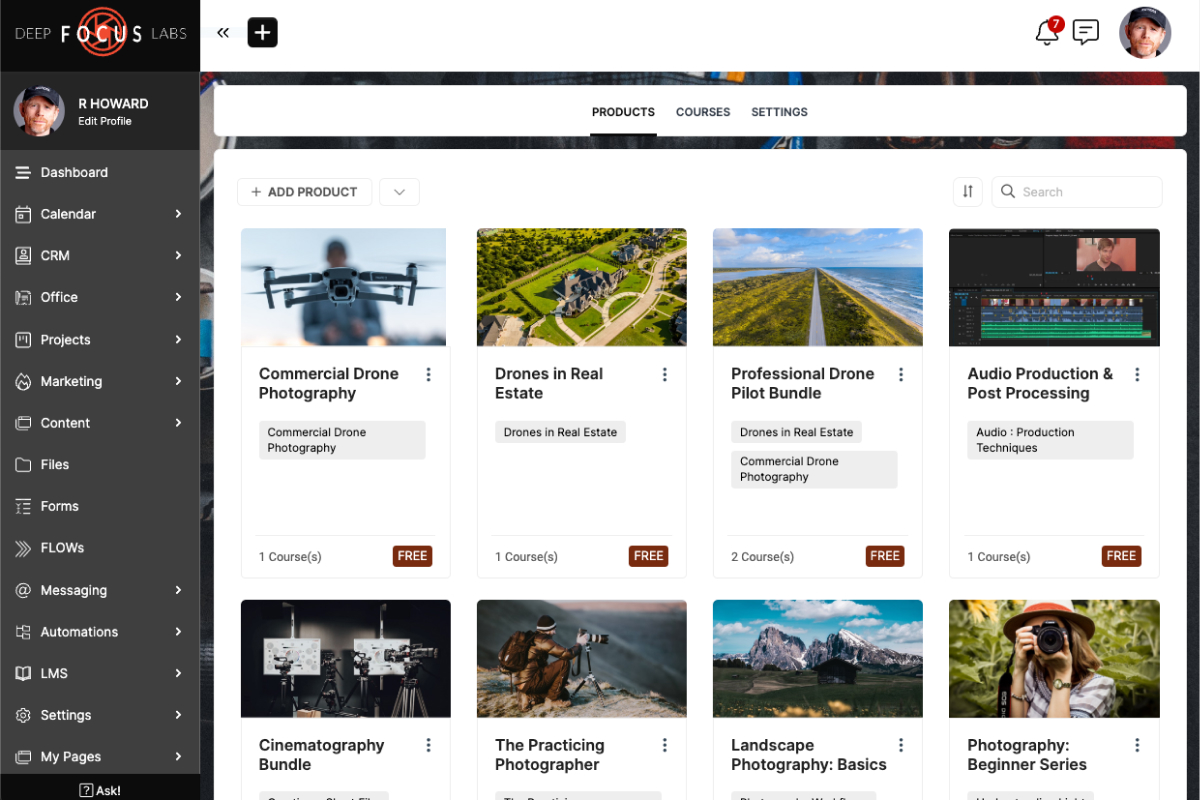
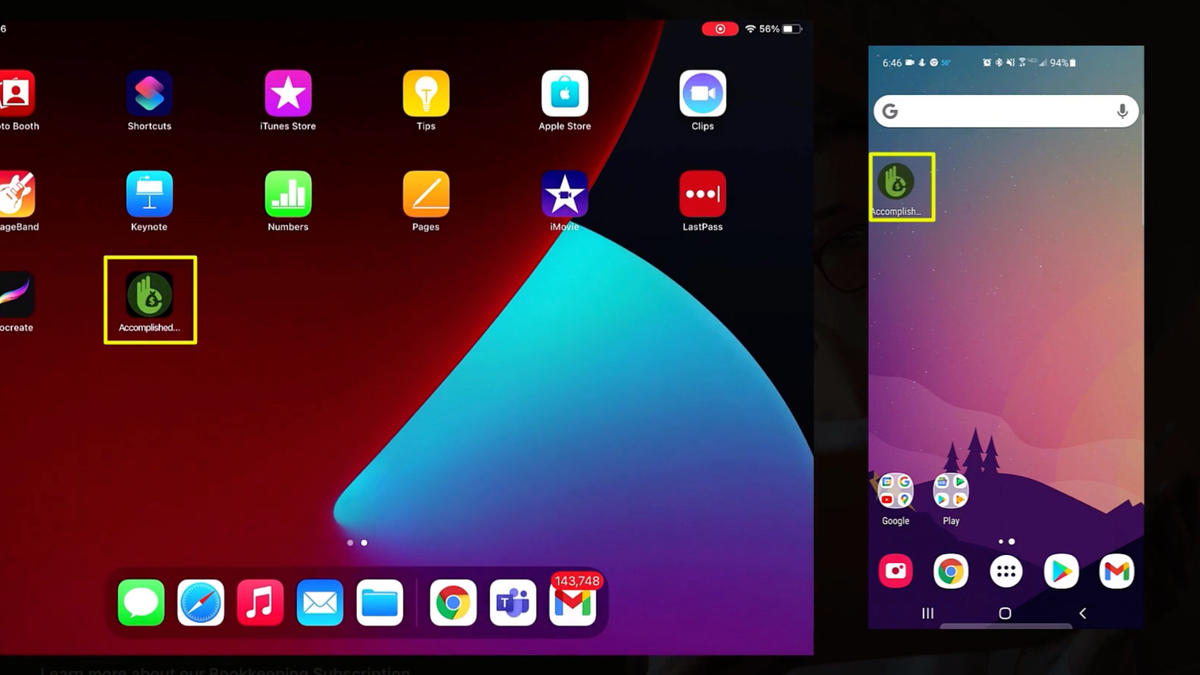
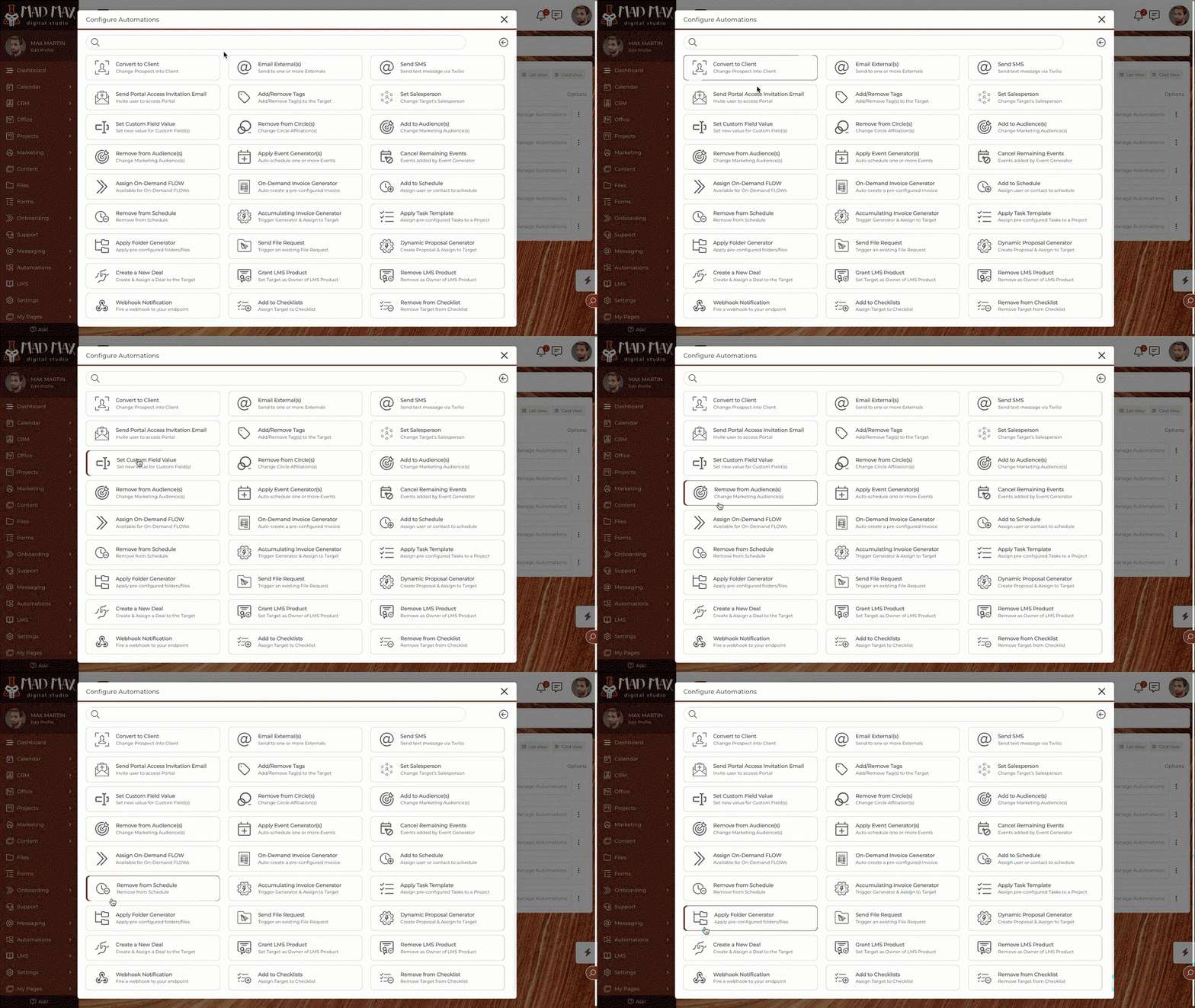


Use this all-in-one business software to improve communication and team collaboration

Lock in lifetime access for $159 before this promotional tier sells out.
Verified lifetime license. Replaces recurring SaaS subscriptions with a single one-time payment.
To integrate reCAPTCHA or hCaptcha into your SuiteDash forms, first configure your Custom URL and connect your reCAPTCHA or hCaptcha account through Flyout > Integrations. Then, while creating your forms, add a CAPTCHA block from the Advanced Blocks dropdown menu. Note that reCAPTCHA and hCaptcha options will only appear in Form Advanced Blocks when properly configured.
To set up a Zapier integration with SuiteDash, navigate to Flyout Menu > Integrations and click the 'Use our Zapier integration' button. This will direct you to SuiteDash's landing page on Zapier's website, where you can create Zaps to automate tasks between SuiteDash and other apps. You'll need to sign in to your SuiteDash account and provide the Token and User ID found in your SuiteDash Integrations page.
To enable Dark Mode in SuiteDash, open the Flyout Menu and toggle the Dark Mode switch to ON. This will change your color scheme to light-colored text on a dark background. You can switch back to your original color scheme by toggling the switch to OFF.
Two Factor Authentication (2FA) in SuiteDash adds an extra layer of security by requiring a One-Time Password (OTP) during login. To set it up, install a third-party authenticator app on your mobile device, navigate to Flyout Menu > My Profile/Settings in SuiteDash, and scan the provided QR code with your authenticator app. Enter the generated code to activate 2FA.
To integrate Zoom with SuiteDash for appointments, create a Zoom account and set up the integration within SuiteDash. This allows you to automatically create Zoom meetings when appointments are booked. Note that while a Zoom account is required for the integration, it is not required for the Contact.
The Quick Find Widget in SuiteDash enables you to quickly search for CRM Contacts, Companies, Projects, and Staff. Access it by clicking the magnifying glass icon at the bottom of each page or by pressing the 'F' key on your keyboard. Type the name of the target in the search bar to find matches.
To customize your SuiteDash login page, first set up your Custom URL by linking your domain to the platform. Then, click on your profile image to access the Flyout Menu and select 'Custom URL & Login'. From there, you can customize the login page layout, background image, and other settings.
A Landing Page in SuiteDash is a public page that can be created and filled with information and resources, accessible by anyone with the URL link. To create one, navigate to Content > Public Pages, click the '+ Public Page' button, and select 'Landing Page'. You can then add content and customize the page as needed.
To enable the Project Dashboard in SuiteDash, navigate to Projects > Settings and click on the 'Project Dashboard Settings' sidebar tab. Toggle the 'Enable the Project Dashboard page' switch to ON. This setting will apply to any newly-created projects and will not affect existing projects.
Live Chat in SuiteDash is a built-in functionality that enables internal users (excluding Freelancers) to communicate with CRM Contacts/Companies in real-time one-on-one Direct Messages, and also enables internal users to chat with other internal users in one-on-one Direct Messages and group Channels. Access the Chat pane by clicking the Chat icon in the top right-hand corner of your screen.

Specializing in productivity software, SaaS lifecycle evaluations, and agency tool stacks. All reviews are independent, hands-on, and tested without vendor influence.